Showing posts with label codec. Show all posts

Wednesday, September 12, 2012

FLAC for Windows


FLAC File
FLAC, short for Free Lossless Audio Codec, is an audio format similar to MP3, but lossless. Thus, audio compressed in FLAC has no loss in quality. With digital storage getting cheaper everyday, it makes sense to copy or preserve sound in the near-perfect quality. I'm compiling FLAC with MinGW because it's needed by some programs I want to build.


  1. I installed MinGW, of course. I also instaled NASM because it was suggested during configure. I just downloaded yasm-1.2.0-win32.exe and renamed it as nasm.exe.


  2. I think it's not necessary, but I compiled zlib and libiconv.


  3. I built OGG.


    ./configure --prefix=/mingw
    make
    make install


  4. Then, I built FLAC.


    ./configure --prefix=/mingw --enable-sse


    The --enable-sse option is for SSE-capable CPU's which mean nearly all new desktop CPU's today. I began make.


    make


    I got errors about SIZE_T_MAX. To fix it, I just changed the line 38 in flac-1.2.1/include/share/alloc.h


    # if defined _MSC_VER || defined __MINGW32__


    I got another error compiling examples/cpp/encode/file/main.cpp. To fix it, I inserted the following line after <stdlib.h> on line 33.


    #include <string.h>


    I got no more error. I installed flac.


    make install


Wednesday, September 5, 2012

To Compile ffmpeg with MinGW

ffmpeg is an important component of many open-source projects, such as MPlayer and VLC. I am compiling ffmpeg so that I can use it to transcode multimedia files. This guide shows how to use MinGW to compile ffmpeg either statically or dynamically. Installation of MinGW is explained in this post. The example commands below are meant to be entered into an MSYS window (not Command Prompt). I downloaded the FFmpeg source and unpacked it.


Preparing External Libraries for FFMpeg


FFMpeg can be linked with external libraries to add features to FFmpeg. I am adding most features to FFMpeg by compiling additional libraries. Most of these libraries are also covered in my posts on compiling MPlayer and Mencoder.


  1. Compression Libraries: Zlib and bzLib

    Get the zlib source (zlib127.zip), unzip and compile it:

    unzip zlib127.zip
    cd zlib-1.2.7/
    make -f win32/Makefile.gcc
    cp -iv zlib1.dll /mingw/bin
    cp -iv zconf.h zlib.h /mingw/include
    cp -iv libz.a /mingw/lib
    cp -iv libz.dll.a /mingw/lib


    Optionally, get bzip2 source from bzip.org and compile it like this:


    tar xzvf bzip2-1.0.6.tar.gz
    cd bzip2-1.0.6
    make
    cp bzlib.h /mingw/include/
    cp libbz2.a /mingw/lib


  2. libgsm

    Download gsm-1.0.13.tar.bz2, unpack and compile it as follows:

    tar xzvf gsm-1.0.13.tar.bz2
    cd gsm-1.0-pl13/
    make

    Just ignore the compile errors with fchmod and fchown when trying to build applications. Copy the header and static library to /mingw:


    mkdir /mingw/include/gsm
    cp inc/gsm.h /mingw/include/gsm
    cp lib/libgsm.a /mingw/lib


  3. LAME is an excellent MP3 encoder. LAME makes use of the nasm assembler if available. So download yasm and save it as /mingw/bin/nasm.exe. Then, download the LAME source from lame.sf.net and compile it like this.

    ./configure --prefix=/mingw --enable-expopt=full

    make

    make install


  4. OGG, Vorbis, Speex and Theora

    The source code for these libraries can be obtained from xiph.org. Compile them each like this:


    ./configure --prefix=/mingw
    make
    make install

    As for speex, use the version 1.2rc1 or later.


  5. FAAC

    FAAC is an MPEG-4 AAC audio encoder. Get the source (faac-1.28.tar.gz) and unpack the package. Then, edit Makefile.am:

    SUBDIRS = include libfaac

    Also, edit the line beginning with AC_OUTPUT in the file configure.in:

    AC_OUTPUT(libfaac/Makefile include/Makefile Makefile)

    Then, compile FAAC like this

    sh bootstrap
    ./configure --prefix=/mingw
    make
    make install


  6. XviD is a popular video encoder used to create movie files distributed in p2p networks. Xvid can use yasm assembler to build optimized binaries if found (/mingw/bin/yasm.exe). Get the XviD source from xvid.org and compile as follows:

    tar xzvf xvidcore-1.3.2.tar.gz
    cd xvidcore/build/generic
    ./configure --prefix=/mingw
    make
    make install


    If you encounter "unrecognized command-line option -mno-cygwin" errors, open the file platform.inc in a text editor and delete "-mno-cygwin". Then, run make and make install again.


    Copy the import library for xvidcore.dll:


    cp -iv \=build/xvidcore.dll.a /mingw/lib/libxvidcore.a


  7. x264 is yet another good video encoder. x264 requires YASM to build an optimized executable. So get yasm and save it as /mingw/bin/yasm.exe. Then, compile x264 like this:

    configure --prefix=/mingw --enable-win32thread --extra-cflags="-DX264_VERSION=20100422"

    make

    make install

    cp -iv x264.h x264_config.h /mingw/include

    cp -iv libx264.a /mingw/lib

    cp -iv x264.pc /mingw/lib/pkgconfig


  8. Compile librtmp as shown in this post.


Building FFMpeg Statically


You need pr.exe from MYS coreutils package (coreutils-5.97-3-msys-1.0.13-ext.tar.lzma). I configured ffmpeg with the following command:


CPPFLAGS='-DHAVE_INT32_T' ./configure --prefix=/mingw --enable-gpl --enable-nonfree --enable-postproc --enable-avfilter --enable-w32threads --enable-runtime-cpudetect --enable-memalign-hack --enable-bzlib --enable-libfaac --enable-libgsm --enable-libmp3lame --enable-libspeex --enable-libtheora --enable-libvorbis --enable-libx264 --enable-libxvid --enable-zlib --disable-debug

-DHAVE_INT32_T is used to allow static FAAC to be linked. Then, I began compilation and installation:


make
make install


Compiling FFmpeg Dynamically


Some Windows applications, such as Audacity, uses FFmpeg libraries when available. If you want to compile FFmpeg dynamically, append --enable-shared --disable-static to the ./configure command for FFmpeg.


./configure --prefix=/mingw --enable-gpl --enable-nonfree --enable-postproc --enable-avfilter --enable-w32threads --enable-runtime-cpudetect --enable-memalign-hack --enable-bzlib --enable-libfaac --enable-libgsm --enable-libmp3lame --enable-librtmp --enable-libspeex --enable-libtheora --enable-libvorbis --enable-libx264 --enable-libxvid --enable-zlib --enable-shared --disable-static --disable-debug


If you get "int32_t" error when compiling libfaac.o, open /mingw/include/faac.h and insert the following line:


#include <stdint.h>


When I built mplayer with --enable-static and --disable-ffmpeg_a options to force linking with shared ffmpeg libraries, I had to rename ffmpeg libraries so their names end in *.a.


cd /mingw/lib
cp -iv libavcodec.dll.a libavcodec.a
cp -iv libavformat.dll.a libavformat.a
cp -iv libavutil.dll.a libavutil.a
cp -iv libpostproc.dll.a libpostproc.a
cp -iv libswscale.dll.a libswscale.a

Sunday, May 16, 2010

Using Mencoder To Merge AVI Files

Merging 2 AVI files can be easily accomplished with mencoder. But the two AVI files must be encoded with the same video and audio codec. Assuming that you have part1.avi and part2.avi, seamlessly consecutive, the mencoder command to concatenate them is:


mencoder -ovc copy -oac copy -o whole.avi part1.avi part2.avi

Sunday, April 25, 2010

Setting Up Codecs For Windows 7

Although Windows 7 provides wider support for multimedia files, including H.264, XviD, DIVX and AAC, Windows Media Player 12 has some bugs, such as jittery DVD sound. For satisfying multimedia experience in Windows 7, one needs to take some steps to set up additional codecs. Though ffdshow is a comprehensive codec package, I am going to use alternative codecs other than ffdshow.


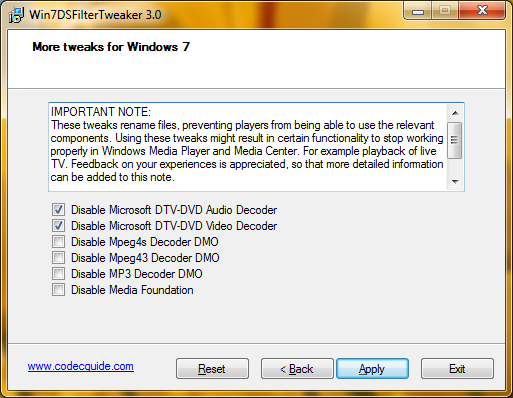
  1. Go to C:\Windows\System32 and rename msmpeg2adec.dll and msmpeg2vdec.dll. Alternatively, run Win7DSFilterTweaker and check both Disable Microsoft DTV-DVD Audio decoder and Disable Microsoft DTV-DVD Video decoder.

    Win7DSFilterTweaker 3.0


  2. Install DirectShow FilterPack (DSFP.zip) which only contains DirectShow source filters and splitters, but no codecs. Unpack the package (DSFP-3.32.exe) into C:\Program Files. Start the Command Prompt (cmd.exe) as administrator and run the batch file DSFP_inst.bat.

    cd "C:\Program Files\DirectShow FilterPack"
    DSFP_inst.bat


  3. Install XviD codec.

  4. Install AC3filter which allows Media Player to play AC3 and DTS sound.

  5. Install DirectShow filters for Ogg Vorbis, Speex, Theora and FLAC from xiph.org.

  6. Obtain CLVsd.ax from the Web and run the following command in an elevated Command Prompt.

    regsvr32 CLVsd.ax

    CLVsd.ax can be obtained this way:


    • Download PowerDVD from filehippo.
    • Right-click the installer (CyberLink.1705(Trial)_DVD100510-04.exe) and open it with 7-zip.
    • Right-click data1.cab and choose Open Inside.
    • Extract the file _64A6CC87C2FD46EDBDBCC13164131D6A (1,086,832 bytes) to C:\Windows\System32 folder.
    • Rename _64A6CC87C2FD46EDBDBCC13164131D6A as CLVsd.ax.
    • Run "regsvr32 CLVsd.ax" as administrator.


  7. Open the registry editor (regedit) and navigate to HKLM\SOFTWARE\Microsoft\Windows\CurrentVersion\Media Center\Decoder and find the entry PreferredMPEG2VideoDecoderCLSID. Double-click the entry and enter {516F1EFA-42F4-436E-801C-B752EB9343EB} (UUID for Cyberlink decoder). You can verify the CLSID with Radlight Filter Manager (DSFM.exe) that was installed by DirectShow FilterPack above.

  8. Download the DirectVobSub filter, also known as VSfilter. Copy VSFilter.dll to C:\Windows\System32 and run the following command:

    regsvr32 VSFilter.dll


Saturday, April 24, 2010

MinGW: To Compile Vorbis Tools

Vorbis tools include oggenc and vorbiscomment that can be used to produce Ogg-Vorbis music files. Ogg Vorbis provides people with free, open-source audio format and encoding algorithm. Because the MP3 algorithm is patented and creating MP3 exposes people to legal risks, use of the Ogg Vorbis format is a reasonable choice for legally conscious people. Besides its openness and patent-free characteristics, Ogg Vorbis offers good compression and sound quality, comparable to MP3 and AAC. Therefore, everyone is recommended to create, use and spread Ogg Vorbis music files, instead of MP3 and AAC.


To learn how to prepare a MinGW environment, read this post. Then, download the source for libogg, libvorbis and vorbis-tools from xiph.org.


To build Vorbis tools, libogg and libvorbis should be compiled first. Start the MinGW rxvt console from the Start menu. Unpack the libogg source and compile it as follows:


tar xzvf libogg-1.2.0.tar.gz
cd libogg-1.2.0/
./configure --prefix=/mingw
make
make install


libvorbis can be compiled likewise:


tar xzvf libvorbis-1.3.1.tar.gz
cd libvorbis-1.3.1/
./configure --prefix=/mingw
make
make install


Then, build vorbis-tools as follows:


tar xzvf vorbis-tools-1.4.0.tar.gz
cd vorbis-tools-1.4.0/
./configure --prefix=/mingw --disable-nls --enable-threads=win32
make
make install


When done, the following files are created in /mingw/bin:


libogg-0.dll
libvorbis-0.dll
libvorbisenc-2.dll
libvorbisfile-3.dll
oggdec.exe
oggenc.exe
ogginfo.exe
vorbiscomment.exe


Copy these files whereever you want. To create an Ogg Vorbis file from a .WAV file, use a command like this:


oggenc -q5 audio.wav


Related Posts


Friday, April 9, 2010

MinGW: Building TwoLAME

TwoLAME is MPEG-2 audio encoder. First, compile libsndfile which is used is read sound files in various formats.


tar xzvf libsndfile-1.0.21.tar.gz
cd libsndfile-1.0.21/
./configure --prefix=/mingw --disable-shared --enable-static
make
make install

Then, build twolame.


tar xzvf twolame-0.3.12.tar.gz
cd twolame-0.3.12/
./configure --prefix=/mingw CPPFLAGS='-DLIBTWOLAME_STATIC'
make
make install

When linking a program with a static TwoLAME library, define LIBTWOLAME_STATIC with CPPFLAGS.


CPPFLAGS=' -DLIBTWOLAME_STATIC' ./configure --enable-static --enable-twolame

MinGW: MPlayer와 Mencoder 동적 컴파일하기

MinGW의 GCC 컴파일러를 사용하여 Windows용 MPlayer와 Mencoder를 컴파일해 보자. MPlayer는 동영상을 보는 프로그램이고 Mencoder는 동영상이나 음악을 인코딩하는 프로그램이다. 예전에는 정적으로 컴파일하였지만 이번에는 동적으로 컴파일해 보자.


우선 MinGW를 설치한다. MPlayer는 FFmpeg 라이브러리에 의존하므로 먼저 FFmpeg 라이브러리를 동적으로 컴파일하도록 한다.


시작 메뉴를 열어 MinGW (rxvt)를 실행한다. 노란 창이 나타날 것이다. 그럼 다음과 같이 MPlayer와 의존 라이브러리를 컴파일하자.


  1. LZO 압축 라이브러리 컴파일 (옵션)

    tar xzvf lzo-2.03.tar.gz
    cd lzo-2.03/
    ./configure --prefix=/mingw
    make
    make install


  2. Fribidi 라이브러리 컴파일 (옵션)

    Fribidi는 아랍어와 히브리어의 표시에 필요하다. 솔직히 이 기능은 빠뜨려도 된다.

    tar xzvf fribidi-0.19.2.tar.gz
    cd fribidi-0.19.2/
    ./configure --prefix=/mingw --disable-debug
    make
    make install

    자세한 내용은 Fribidi에 관한 글을 참조.

  3. giflib 라이브러리 컴파일 (옵션)

    tar xjvf giflib-4.1.6.tar.bz2 
    cd giflib-4.1.6/
    ./configure --prefix=/mingw
    make
    make install


  4. Live555 라이브러리 컴파일 (권장)

    Live 라이브러리는 인터넷 동영상을 보는 데 쓰인다. live555.com에서 최신 버전을 받아 다음과 같이 컴파일한다:

    export CC=/mingw/bin/gcc.exe
    cd /mingw/lib/
    tar xzvf live.2010.04.01.tar.gz
    cd live/
    ./genMakefiles mingw
    make


  5. JPEG 라이브러리 컴파일 (권장)

    tar xzvf jpegsrc.v8a.tar.gz
    cd jpeg-8a/
    ./configure --prefix=/mingw
    make
    make install


  6. PNG 라이브러리 컴파일 (권장)

    tar xzvf libpng-1.4.1.tar.gz 
    cd libpng-1.4.1
    ./configure --prefix=/mingw
    make
    make install


  7. FreeType 라이브러리 컴파일 (필수)

    자막 표시에 필요하다.

    그리고 Freetype를 컴파일한다.

    tar xzvf freetype-2.3.12.tar.gz 
    cd freetype-2.3.12/
    ./configure --prefix=/mingw
    make install


  8. 만일 iconv 라이브러리가 설치되어 있지 않다면 컴파일한다. libXML2 그리고 fontconfig 에 필요하다.

  9. libXML2 컴파일

    만약에 fontconfig 라이브러리를 컴파일하려면 필요하다. 먼저 testThreads.c를 고친다.

    --- testThreads.c.orig  2009-09-11 18:09:00.268640135 +0200
    +++ testThreads.c 2009-09-11 18:12:43.412653512 +0200
    @@ -107,7 +107,7 @@

    for (i = 0; i < num_threads; i++) {
    results[i] = NULL;
    - tid[i] = (pthread_t) -1;
    + memset(&tid[i], 0, sizeof(pthread_t));
    }

    for (i = 0; i < num_threads; i++) {

    그리고 컴파일한다:


    ./configure --prefix=/mingw
    make install


  10. Fontconfig 라이브러리 컴파일 (권장)

    SSA 자막 표시에 필요하다.

    tar xzvf fontconfig-2.8.0.tar.gz 
    cd fontconfig-2.8.0/
    ./configure --prefix=/mingw
    make install


  11. Libcdio 컴파일 (옵션)

    tar xzvf libcdio-0.83.tar.gz 
    cd libcdio-0.83/
    ./configure --prefix=/mingw
    make
    make install


  12. Libdca 컴파일 (권장)

    tar xjvf libdca-0.0.5.tar.bz2 
    cd libdca-0.0.5/
    ./configure --prefix=/mingw
    make install


  13. DirectX 7 라이브러리 추출 (권장)

    cd /mingw/include/
    tar xzvf dx7headers.gz


  14. MPlayer, Mencoder 컴파일

    ffmpeg 소스를 받아서 mplayer 소스 디렉토리에 넣는다.

    tar xjvf mplayer-export-snapshot.tar.bz2

    cd mplayer-export-2011-11-25/

    tar xjvf ffmpeg-snapshot.tar.bz2

    CPPFLAGS='-DWIN32 -DHAVE_INT32_T' ./configure --prefix=/mingw --enable-runtime-cpudetection --enable-theora --enable-fribidi --disable-ffmpeg_a --yasm=/mingw/bin/yasm

    MPlayer를 컴파일하기 전에 config.mak를 텍스트 에디터(notepad.exe)로 수정한다.

    EXTRALIBS_MPLAYER  = -lgdi32 -lopengl32 -lwinmm -lfaac -lx264 -lmp3lame -lfribidi
    EXTRALIBS_MENCODER = -lfaac -lx264 -lfribidi -lmp3lame

    MPlayer 컴파일 시작한다.

    make

  15. MPlayer.exe와 Mencoder.exe를 복사한다.

    strip mencoder.exe mplayer.exe
    cp -iv m*.exe /mingw/bin

Monday, March 22, 2010

Free Command-Line Audio Encoders (for Windows)

Here you can download free, open-source audio encoders for MP3, OGG and AAC music formats. I compiled LAME and Ogg Vorbis tools with MinGW whereas FAAC was compiled by someone (faac-1.28.7z).


Install MPlayer, Mencoder, MP4Box and Mkvmerge


Download my package of Windows executables, including mencoder and mp4box here.


I built it using MinGW. The package contains the following programs.


  • faac.exe
  • faad.exe
  • lame.exe
  • mencoder.exe
  • MP4Box.exe
  • mpcenc.exe
  • mplayer.exe
  • normalize.exe
  • oggdec.exe
  • oggenc.exe
  • ogginfo.exe
  • speexdec.exe
  • speexenc.exe
  • twolame.exe
  • vorbiscomment.exe
  • x264.exe

It is recommended that you unpack the package into C:\Program Files. If MPlayer and Mencoder were installed in C:\Program Files\MPlayer, start Command Prompt and set PATH to include the MPlayer folder:


PATH "C:\Program Files\MPlayer\bin";%PATH%

Mkvmerge is part of Mkvtoolnix that can be obtained from http://www.bunkus.org/videotools/mkvtoolnix/.


Related Links


Thursday, February 25, 2010

MinGW: Building GPAC

GPAC is an MPEG-4 multimedia transcoder suite. This post documents my attempt to compile GPAC with MinGW for the Win32 platform.


  1. Compile OpenSSL as shown in this post.

  2. Build FreeType as shown below.
    tar xjvf freetype-2.3.9.tar.bz2
    cd freetype-2.3.9
    ./configure --prefix=/mingw --disable-shared
    make
    make install


  3. liba52 AC3 decoder


    Download the liba52 source from liba52.sf.net and compile libA52 like this:

    tar xzvf a52dec-0.7.4.tar.gz
    cd a52dec-0.7.4/
    ./configure --prefix=/mingw
    make
    make install

    The following files are installed:

    bin/a52dec.exe
    bin/extract_a52.exe
    include/a52dec/a52.h
    include/a52dec/attributes.h
    include/a52dec/audio_out.h
    include/a52dec/mm_accel.h
    lib/liba52.a
    lib/liba52.la
    man/man1/a52dec.1
    man/man1/extract_a52.1


  4. MAD Library


    The MAD (MPEG Audio Decoder) library is a fast fixed-point MPEG audio decoder that doesn't require an FPU numeric processor. Download the libmad source from mad.sf.net and compile MAD like this:


    tar xzvf libmad-0.15.1b.tar.gz
    cd libmad-0.15.1b
    ./configure --prefix=/mingw --disable-shared --enable-fpm=intel --disable-debugging
    make
    make install

    The following files are installed:

    include/mad.h
    lib/libmad.a
    lib/libmad.la


  5. Get DirectX headers from either location below and extract it into /mingw/include:


  6. Download the source for the JPEG library and compile as follows:
    tar xzvf jpegsrc.v7.tar.gz
    cd jpeg-7
    ./configure --prefix=/mingw --enable-static
    make
    make install


  7. Download the source for the PNG library and compile like this:
    tar xzvf libpng-1.2.38.tar.gz
    cd libpng-1.2.38/
    ./configure --prefix=/mingw --disable-shared
    make
    make install


  8. Then, compile GPAC like this:
    ./configure --prefix=/mingw --cpu=i586 --strip --use-png=no --use-ffmpeg=no

    cp config.h include/gpac/internal


    Before compilation, I edited config.mak:


    SSL_LIBS=-lssleay32 -leay32 -lgdi32 -lws2_32 -lz

    Then, I started make:


    make

    make install


    I encountered an error during the final compilation. But I got MP4Box.exe which was all I needed. So I copied mp4box.exe and libgpac.dll from ~/gpac/bin/gcc.


List Of Created Files


The following files are created as a result of compiling GPAC with MinGW:


gm_aac_in.dll
gm_ac3_in.dll
gm_bifs_dec.dll
gm_ctx_load.dll
gm_dummy_in.dll
gm_dx_hw.dll
gm_ft_font.dll
gm_img_in.dll
gm_ismacryp.dll
gm_isom_in.dll
gm_laser_dec.dll
gm_mp3_in.dll
gm_mpegts_in.dll
gm_odf_dec.dll
gm_ogg_xiph.dll
gm_raw_out.dll
gm_rtp_in.dll
gm_saf_in.dll
gm_soft_raster.dll
gm_svg_in.dll
gm_timedtext.dll
gm_wav_audio.dll
gm_xvid_dec.dll
libgpac.dll
MP4Box.exe
MP4Client.exe

Saturday, February 20, 2010

Fixing Jittery DVD Sound on Windows 7

I've been using Windows 7 happily until I played a DVD movie and heard continuous jittery noise. The picture was fine, but Windows Media Player 12 only uttered the jittery noise instead of words and music.


I think it's a codec problem. To fix the problem, I downloaded Preferred Filter Tweaker for Windows 7 and disabled Microsoft DTV-DVD Audio Decoder.


This renames C:\Windows\System32\msmpeg2adec.dll so that Windows Media Player 12 doesn't use its own codec. Then, I installed AC3Filter. This fixed the jittery noise problem. Alternatively, ffdshow can be used instead of AC3Filter.

Monday, February 1, 2010

MinGW: To Compile LAME for Windows

LAME is a high-quality open-source MP3 encoder. Even though LAME is open-source, LAME is not freely distributed by some major Linux distributions, including Debian and Ubuntu. That's because there have been uncertain legal issues surrounding the MP3 algorithm. However, you can still download the LAME source and compile LAME using the free MinGW compiler. Following is an easy guide to compiling LAME for Windows.


The configure script of LAME makes use of nasm if found. To produce an optimal build of LAME, download yasm and save it as /mingw/bin/nasm.exe.


Launch MSYS (rxvt) and type the following command to unpack the LAME tarball.


tar xzvf lame-398-4.tar.gz

Go to the new folder lame-3.98.4 and configure LAME.


cd lame-3.98.4

./configure --prefix=/mingw --disable-shared --enable-expopt=full

Start compilation.


make

make install” will copy the following files into /mingw tree.


bin/lame.exe
bin/libmp3lame-0.dll
include/lame/
lib/libmp3lame.a
lib/libmp3lame.dll.a
lib/libmp3lame.la

What you definitely want is libmp3lame-0.dll and lame.exe. Copy them to a folder, for example, C:\Windows\System32 or C:\Windows.


To Make LAME_ENC.DLL


Even though the normal MinGW process creates a dynamic library named libmp3lame-0.dll, many Windows applications require a variant of LAME library called lame_enc.dll. Rather than hacking Makefiles, we can use a tool called a2dll from mingw-utils. mingw-utils is a package of tiny handy programs useful for MinGW users. Download mingw-utils-0.3.tar.gz and extract a2dll with tar or 7-zip.


After compiling LAME as shown above, open MSYS rxvt again and go to the folder that contains libmp3lame.a.


cd lame-3.98.4/libmp3lame/.libs

Then, run a2dll like this:


a2dll libmp3lame.a -o lame_enc.dll

You may append the -s option to get a leaner file lame_enc.dll. I tested lame_enc.dll I got this way with Audacity, and audacity was able to recognize lame_enc.dll and export to MP3 files. Yet, I need to do more testing with other programs, such as WinAMP, etc.


Related Posts


About This Blog

KBlog logo This blog is about current events and issues concerning general population. Thanks for visiting the blog and posting your comments.

© Contents by KBlog

© Blogger template by Emporium Digital 2008

Followers

Total Pageviews

icon
Powered By Blogger