Happiness is a Korean movie that makes you think seriously about the true meaning of happiness in life. It tells a story of two terminal patients who met at a remote nursing home and fell in love with each other. However, the guy leaves the girl for a careless, material life in the city. In the end, he comes back to the girl only to find her dying and regrets having left her. The movie tries to teach us that true happiness is about being close to someone you care about no matter how sick or poor he/she is.
Showing posts with label movie. Show all posts
Showing posts with label movie. Show all posts
Sunday, September 30, 2012
Friday, September 21, 2012
Monday, September 17, 2012
Quick 2011 with English/Spanish/Turkish/Arabic Subtitle
Quick is a Korean action movie that delivers thrilling action and speedy storyline.
With English subtitles
Quick.2011.part1 by wagamit1
Quick.2011.part2 by wagamit1
Quick.2011.part3 by wagamit1
Quick.2011.part4 by wagamit1
Quick.2011.part5 by wagamit1
Quick.2011.part6 by wagamit1
Quick.2011.part7 by wagamit1
With Arabic Subtitle
With Turkish Subtitle
Quick.2011.sa-rang-001.yeppudaa by onerepulic
Quick.2011.sa-rang-002.yeppudaa by onerepulic
With Spanish Subtitle
[Peliculas Coreanas] Quick 2011 (Divertidisima)
Tuesday, September 11, 2012
Kung Fu Hustle (2004) 功夫
Kung Fu Hustle is a funny but memorable movie from Hong Kong star Stephen Chow. If you haven't seen it yet, here's your chance to watch the movie.
And the one below is the original Chinese version with English subtitles.
Sunday, September 9, 2012
Hilariously Awesome Martial Arts Classic: The Story of Ricky (电影: 力王)
Do you like classic horror movies or a Chinese kung-fu movie? Then, you may like the Hong Kong movie, “Ricki Oh: the Story of Ricky.” It's got both: blood and gore, and awesome kung fu. The fight scenes are gross and brutal like Kill Bill, but otherwise have outrageously cool kung-fu moves. However, I warn that some viewer discretion is advised.
Here's the same movie in Mandarin Chinese.
Saturday, September 8, 2012
Building MPlayer and Mencoder for Windows

MPlayer is one of my favorite media players. It is used with a frontend like smplayer, gnome-mplayer and MPlayerGUI to provide a good alternative to Windows Media Player. Although there are already several Win32 builds of MPlayer on the net, I like to build MPlayer on my own using MinGW compiler because I want to optimize my build for my CPU. So I installed MinGW and compiled MPlayer as follows.
Build ffmpeg statically or dynamically as shown in this post.
- (Optional) Compile the lzo library:
./configure --prefix=/mingw && make && make install
(Optional) Fribidi is a rendering library for right-to-left scripts, such as Arabic and Hebrew. If you are a speaker of such right-to-left languages, compile fribidi statically as shown below:
./configure --prefix=/mingw --disable-shared --disable-debug
make
make install
More information can be found here.
- Download JPEG source from ijg.org and complie JPEG:
./configure --prefix=/mingw --enable-static
make
make install - Compile libPNG:
./configure --prefix=/mingw --disable-shared
make
make install - Compile libiconv, Freetype, expat and fontconfig statically in that order:
./configure --prefix=/mingw --disable-shared
make install - Compile libdca:
./configure --prefix=/mingw
make
make install - (Optional) Download DirectX headers from any of the following locations and unpack them in /mingw/include:
- http://www.videolan.org/vlc/dx7headers.tgz
- http://www.mplayerhq.hu/MPlayer/contrib/win32/dx7headers.tgz
- http://www.videolan.org/vlc/dx7headers.tgz
- Download the latest mplayer source (mplayer-export-snapshot.tar.bz2) and unpack it. (patch 1 and patch 2)
tar xjvf mplayer-export-snapshot.tar.bz2
cd mplayer-export-2010-02-07/
Then, run
./configure:CPPFLAGS='-DFRIBIDI_ENTRY="" ' ./configure --prefix=/mingw --enable-runtime-cpudetection --enable-static --enable-theora --enable-fribidi --disable-ffmpeg_a --disable-gl --disable-vidix --yasm=/mingw/bin/yasm --extra-libs='-lfribidi'
The CPPFLAGS value allows fribidi to be linked statically.
- Build Mplayer:
make
After successful build, strip the executables:
strip m*.exe
Optionally, compress the executables with upx:
upx --best --strip-relocs=0 mplayer.exe
upx --best --strip-relocs=0 mencoder.exe
Download MPlayer codecs from here. The MPlayer codecs for Windows platform has a filename like windows-essential-20071007.zip. Extract the codecs package and you'll get a folder "windows-essential-20071007". Rename it as "codecs" and move the "codecs" folder inside where mplayer.exe file is located.
Make sure that HOME environment variable is set to your personal folder(for example, C:\Users\Jocelyn). Upon the first run of mplayer, a new folder named
mplayerwill be created in your HOME folder. Copy codecs.conf to themplayerfolder. The "config" file stores default options for playing movie files. Open the "config" file and make changes as follows:# Write your default config options here!
cdrom-device=D:
dvd-device=D:
ao=dsound
vo=direct3d
font=C:\WINDOWS\FONTS\MALGUN.TTF
framedrop=yes
subcp=cp949
My win32 build of mplayer can be downloaded from here. It is recommended that the zip archive should be extracted in C:\Program Files.
Running MPlayer
Now, let's try mplayer. First, get a movie file ready. In the Command Prompt, type a command in the following form:
mplayer mymoviefile.avi
Alternatively,
mplayer -vo direct3d -ao win32 -font C:\WINDOWS\FONTS\Tahoma.ttf -framedrop mymoviefile.avi
A new window will pop up with the movie playing inside it.
The next step is to get and set up SMPlayer.
Wednesday, September 5, 2012
To Compile ffmpeg with MinGW
ffmpeg is an important component of many open-source projects, such as MPlayer and VLC. I am compiling ffmpeg so that I can use it to transcode multimedia files. This guide shows how to use MinGW to compile ffmpeg either statically or dynamically. Installation of MinGW is explained in this post. The example commands below are meant to be entered into an MSYS window (not Command Prompt). I downloaded the FFmpeg source and unpacked it.
Preparing External Libraries for FFMpeg
FFMpeg can be linked with external libraries to add features to FFmpeg. I am adding most features to FFMpeg by compiling additional libraries. Most of these libraries are also covered in my posts on compiling MPlayer and Mencoder.
- Compression Libraries: Zlib and bzLib
Get the zlib source (zlib127.zip), unzip and compile it:unzip zlib127.zip
cd zlib-1.2.7/
make -f win32/Makefile.gcc
cp -iv zlib1.dll /mingw/bin
cp -iv zconf.h zlib.h /mingw/include
cp -iv libz.a /mingw/lib
cp -iv libz.dll.a /mingw/libOptionally, get bzip2 source from bzip.org and compile it like this:
tar xzvf bzip2-1.0.6.tar.gz
cd bzip2-1.0.6
make
cp bzlib.h /mingw/include/
cp libbz2.a /mingw/lib - libgsm
Download gsm-1.0.13.tar.bz2, unpack and compile it as follows:tar xzvf gsm-1.0.13.tar.bz2
cd gsm-1.0-pl13/
makeJust ignore the compile errors with fchmod and fchown when trying to build applications. Copy the header and static library to /mingw:
mkdir /mingw/include/gsm
cp inc/gsm.h /mingw/include/gsm
cp lib/libgsm.a /mingw/lib - LAME is an excellent MP3 encoder. LAME makes use of the nasm assembler if available. So download yasm and save it as /mingw/bin/nasm.exe. Then, download the LAME source from lame.sf.net and compile it like this.
./configure --prefix=/mingw --enable-expopt=full
make
make install - OGG, Vorbis, Speex and Theora
The source code for these libraries can be obtained from xiph.org. Compile them each like this:
./configure --prefix=/mingw
make
make install
As for speex, use the version 1.2rc1 or later.
- FAAC
FAAC is an MPEG-4 AAC audio encoder. Get the source (faac-1.28.tar.gz) and unpack the package. Then, edit Makefile.am:
SUBDIRS = include libfaac
Also, edit the line beginning with AC_OUTPUT in the file configure.in:
AC_OUTPUT(libfaac/Makefile include/Makefile Makefile)
Then, compile FAAC like this
sh bootstrap
./configure --prefix=/mingw
make
make install - XviD is a popular video encoder used to create movie files distributed in p2p networks. Xvid can use yasm assembler to build optimized binaries if found (
/mingw/bin/yasm.exe). Get the XviD source from xvid.org and compile as follows:tar xzvf xvidcore-1.3.2.tar.gz
cd xvidcore/build/generic
./configure --prefix=/mingw
make
make installIf you encounter "unrecognized command-line option
-mno-cygwin" errors, open the file platform.inc in a text editor and delete "-mno-cygwin". Then, runmakeandmake installagain.Copy the import library for xvidcore.dll:
cp -iv \=build/xvidcore.dll.a /mingw/lib/libxvidcore.a
- x264 is yet another good video encoder. x264 requires YASM to build an optimized executable. So get yasm and save it as /mingw/bin/yasm.exe. Then, compile x264 like this:
configure --prefix=/mingw --enable-win32thread --extra-cflags="-DX264_VERSION=20100422"
make
make install
cp -iv x264.h x264_config.h /mingw/include
cp -iv libx264.a /mingw/lib
cp -iv x264.pc /mingw/lib/pkgconfig - Compile librtmp as shown in this post.
Building FFMpeg Statically
You need pr.exe from MYS coreutils package (coreutils-5.97-3-msys-1.0.13-ext.tar.lzma). I configured ffmpeg with the following command:
CPPFLAGS='-DHAVE_INT32_T' ./configure --prefix=/mingw --enable-gpl --enable-nonfree --enable-postproc --enable-avfilter --enable-w32threads --enable-runtime-cpudetect --enable-memalign-hack --enable-bzlib --enable-libfaac --enable-libgsm --enable-libmp3lame --enable-libspeex --enable-libtheora --enable-libvorbis --enable-libx264 --enable-libxvid --enable-zlib --disable-debug
-DHAVE_INT32_T is used to allow static FAAC to be linked. Then, I began compilation and installation:
make
make install
Compiling FFmpeg Dynamically
Some Windows applications, such as Audacity, uses FFmpeg libraries when available. If you want to compile FFmpeg dynamically, append --enable-shared --disable-static to the ./configure command for FFmpeg.
./configure --prefix=/mingw --enable-gpl --enable-nonfree --enable-postproc --enable-avfilter --enable-w32threads --enable-runtime-cpudetect --enable-memalign-hack --enable-bzlib --enable-libfaac --enable-libgsm --enable-libmp3lame --enable-librtmp --enable-libspeex --enable-libtheora --enable-libvorbis --enable-libx264 --enable-libxvid --enable-zlib --enable-shared --disable-static --disable-debug
If you get "int32_t" error when compiling libfaac.o, open /mingw/include/faac.h and insert the following line:
#include <stdint.h>
When I built mplayer with --enable-static and --disable-ffmpeg_a options to force linking with shared ffmpeg libraries, I had to rename ffmpeg libraries so their names end in *.a.
cd /mingw/lib
cp -iv libavcodec.dll.a libavcodec.a
cp -iv libavformat.dll.a libavformat.a
cp -iv libavutil.dll.a libavutil.a
cp -iv libpostproc.dll.a libpostproc.a
cp -iv libswscale.dll.a libswscale.a
Sunday, May 16, 2010
Using Mencoder To Merge AVI Files
Merging 2 AVI files can be easily accomplished with mencoder. But the two AVI files must be encoded with the same video and audio codec. Assuming that you have part1.avi and part2.avi, seamlessly consecutive, the mencoder command to concatenate them is:
mencoder -ovc copy -oac copy -o whole.avi part1.avi part2.avi
Sunday, April 25, 2010
Setting Up Codecs For Windows 7
Although Windows 7 provides wider support for multimedia files, including H.264, XviD, DIVX and AAC, Windows Media Player 12 has some bugs, such as jittery DVD sound. For satisfying multimedia experience in Windows 7, one needs to take some steps to set up additional codecs. Though ffdshow is a comprehensive codec package, I am going to use alternative codecs other than ffdshow.
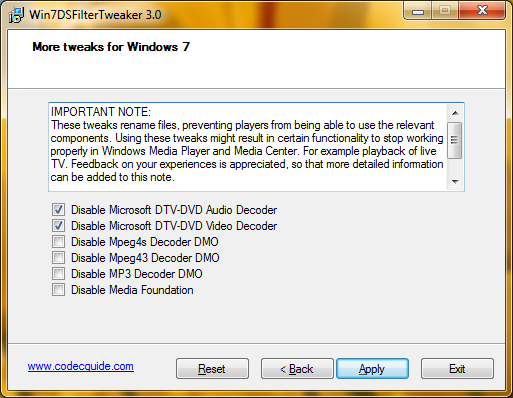
- Go to C:\Windows\System32 and rename msmpeg2adec.dll and msmpeg2vdec.dll. Alternatively, run Win7DSFilterTweaker and check both Disable Microsoft DTV-DVD Audio decoder and Disable Microsoft DTV-DVD Video decoder.
- Install DirectShow FilterPack (DSFP.zip) which only contains DirectShow source filters and splitters, but no codecs. Unpack the package (DSFP-3.32.exe) into
C:\Program Files. Start the Command Prompt (cmd.exe) as administrator and run the batch fileDSFP_inst.bat.cd "C:\Program Files\DirectShow FilterPack"
DSFP_inst.bat - Install XviD codec.
- Install AC3filter which allows Media Player to play AC3 and DTS sound.
- Install DirectShow filters for Ogg Vorbis, Speex, Theora and FLAC from xiph.org.
- Obtain CLVsd.ax from the Web and run the following command in an elevated Command Prompt.
regsvr32 CLVsd.ax
CLVsd.ax can be obtained this way:
- Download PowerDVD from filehippo.
- Right-click the installer (CyberLink.1705(Trial)_DVD100510-04.exe) and open it with 7-zip.
- Right-click data1.cab and choose Open Inside.
- Extract the file
_64A6CC87C2FD46EDBDBCC13164131D6A(1,086,832 bytes) to C:\Windows\System32 folder. - Rename
_64A6CC87C2FD46EDBDBCC13164131D6Aas CLVsd.ax. - Run "regsvr32 CLVsd.ax" as administrator.
- Download PowerDVD from filehippo.
- Open the registry editor (regedit) and navigate to
HKLM\SOFTWARE\Microsoft\Windows\CurrentVersion\Media Center\Decoderand find the entryPreferredMPEG2VideoDecoderCLSID. Double-click the entry and enter {516F1EFA-42F4-436E-801C-B752EB9343EB} (UUID for Cyberlink decoder). You can verify the CLSID with Radlight Filter Manager (DSFM.exe) that was installed by DirectShow FilterPack above. - Download the DirectVobSub filter, also known as VSfilter. Copy VSFilter.dll to C:\Windows\System32 and run the following command:
regsvr32 VSFilter.dll
Labels:
codec,
movie,
multimedia,
music,
windows 7


Friday, April 9, 2010
MinGW: MPlayer와 Mencoder 동적 컴파일하기
MinGW의 GCC 컴파일러를 사용하여 Windows용 MPlayer와 Mencoder를 컴파일해 보자. MPlayer는 동영상을 보는 프로그램이고 Mencoder는 동영상이나 음악을 인코딩하는 프로그램이다. 예전에는 정적으로 컴파일하였지만 이번에는 동적으로 컴파일해 보자.
우선 MinGW를 설치한다. MPlayer는 FFmpeg 라이브러리에 의존하므로 먼저 FFmpeg 라이브러리를 동적으로 컴파일하도록 한다.
시작 메뉴를 열어 MinGW (rxvt)를 실행한다. 노란 창이 나타날 것이다. 그럼 다음과 같이 MPlayer와 의존 라이브러리를 컴파일하자.
- LZO 압축 라이브러리 컴파일 (옵션)
tar xzvf lzo-2.03.tar.gz
cd lzo-2.03/
./configure --prefix=/mingw
make
make install - Fribidi 라이브러리 컴파일 (옵션)
Fribidi는 아랍어와 히브리어의 표시에 필요하다. 솔직히 이 기능은 빠뜨려도 된다.tar xzvf fribidi-0.19.2.tar.gz
cd fribidi-0.19.2/
./configure --prefix=/mingw --disable-debug
make
make install
자세한 내용은 Fribidi에 관한 글을 참조. - giflib 라이브러리 컴파일 (옵션)
tar xjvf giflib-4.1.6.tar.bz2
cd giflib-4.1.6/
./configure --prefix=/mingw
make
make install - Live555 라이브러리 컴파일 (권장)
Live 라이브러리는 인터넷 동영상을 보는 데 쓰인다. live555.com에서 최신 버전을 받아 다음과 같이 컴파일한다:export CC=/mingw/bin/gcc.exe
cd /mingw/lib/
tar xzvf live.2010.04.01.tar.gz
cd live/
./genMakefiles mingw
make - JPEG 라이브러리 컴파일 (권장)
tar xzvf jpegsrc.v8a.tar.gz
cd jpeg-8a/
./configure --prefix=/mingw
make
make install - PNG 라이브러리 컴파일 (권장)
tar xzvf libpng-1.4.1.tar.gz
cd libpng-1.4.1
./configure --prefix=/mingw
make
make install - FreeType 라이브러리 컴파일 (필수)
자막 표시에 필요하다.
그리고 Freetype를 컴파일한다.tar xzvf freetype-2.3.12.tar.gz
cd freetype-2.3.12/
./configure --prefix=/mingw
make install - 만일 iconv 라이브러리가 설치되어 있지 않다면 컴파일한다. libXML2 그리고 fontconfig 에 필요하다.
- libXML2 컴파일
만약에 fontconfig 라이브러리를 컴파일하려면 필요하다. 먼저 testThreads.c를 고친다.--- testThreads.c.orig 2009-09-11 18:09:00.268640135 +0200
+++ testThreads.c 2009-09-11 18:12:43.412653512 +0200
@@ -107,7 +107,7 @@
for (i = 0; i < num_threads; i++) {
results[i] = NULL;
- tid[i] = (pthread_t) -1;
+ memset(&tid[i], 0, sizeof(pthread_t));
}
for (i = 0; i < num_threads; i++) {그리고 컴파일한다:
./configure --prefix=/mingw
make install - Fontconfig 라이브러리 컴파일 (권장)
SSA 자막 표시에 필요하다.tar xzvf fontconfig-2.8.0.tar.gz
cd fontconfig-2.8.0/
./configure --prefix=/mingw
make install - Libcdio 컴파일 (옵션)
tar xzvf libcdio-0.83.tar.gz
cd libcdio-0.83/
./configure --prefix=/mingw
make
make install - Libdca 컴파일 (권장)
tar xjvf libdca-0.0.5.tar.bz2
cd libdca-0.0.5/
./configure --prefix=/mingw
make install - DirectX 7 라이브러리 추출 (권장)
cd /mingw/include/
tar xzvf dx7headers.gz - MPlayer, Mencoder 컴파일
ffmpeg 소스를 받아서 mplayer 소스 디렉토리에 넣는다.tar xjvf mplayer-export-snapshot.tar.bz2
cd mplayer-export-2011-11-25/
tar xjvf ffmpeg-snapshot.tar.bz2
CPPFLAGS='-DWIN32 -DHAVE_INT32_T' ./configure --prefix=/mingw --enable-runtime-cpudetection --enable-theora --enable-fribidi --disable-ffmpeg_a --yasm=/mingw/bin/yasm
MPlayer를 컴파일하기 전에 config.mak를 텍스트 에디터(notepad.exe)로 수정한다.EXTRALIBS_MPLAYER = -lgdi32 -lopengl32 -lwinmm -lfaac -lx264 -lmp3lame -lfribidi
EXTRALIBS_MENCODER = -lfaac -lx264 -lfribidi -lmp3lameMPlayer 컴파일 시작한다.
make
- MPlayer.exe와 Mencoder.exe를 복사한다.
strip mencoder.exe mplayer.exe
cp -iv m*.exe /mingw/bin
Monday, February 15, 2010
Using Mencoder to Rip DVD into AVI/MKV/MP4 movies
Since I compiled MPlayer and Mencoder, I can use the programs for ripping DVD's as well as watching movies. Usually, I use SMPlayer frontend to play movies. Here I summarize how to make AVI, Matroska (.MKV) or MP4 files containing H.264 video and AAC audio.
First, download my Mplayer/Mencoder builds for Windows. MKVtoolnix is also needed.
Finding the Main DVD Title
In most cases, the first DVD title is the movie you want. Often, you can watch the feature title with the following command (Assuming D: is the DVD drive):
mplayer dvd://1 -dvd-device D:\ -ao dsound -vo directx:accel
For Windows Vista and Windows 7, direct3d is recommended as video output:
mplayer dvd://1 -dvd-device D:\ -ao dsound -vo direct3d
However, some DVD's have a feature title on a track other than the first. For such DVD's, trying each track can be tedious. The following command will help identify the main title on the DVD and also find information on available chapters and subtitles.
mplayer dvd://1 -dvd-device D:\ -identify -vf cropdetect > log.txt
Stop the movie after a moment (pressing q) and you'll get the log file log.txt. In the log.txt file, you'll find the main title to be the longest:
ID_DVD_TITLE_15_LENGTH=12.000
ID_DVD_TITLE_16_LENGTH=5513.533
ID_DVD_TITLE_17_LENGTH=0.500
Here, you find that the 16th title is the feature film.
Dumping the Feature Film from DVD
You can use MPlayer to save a DVD title on hard drive:
mplayer dvd://1 -dvd-device D: -v -dumpstream -dumpfile movie.vob
Now you can put aside your DVD. From now on, you can work with the VOB file saved on your hard drive. Alternatively, you can use VLC to dump a DVD title.
Finding Crop Values
If your DVD is widescreen (not fullscreen), look for the crop values from the log.txt file obtained above:
[CROP] Crop area: X: 0..719 Y: 60..417 (-vf crop=720:352:0:64).
In this example, the crop value will be 720:352:0:64. Note that the first two values (here 720 and 352) have to be divisible by 16.
Encoding DVD to an AVI file containing H.264 video and AAC audio
The following command actually creates an AVI file encoded in H.264:
mencoder dvd://1 -dvd-device E:\ -o movie.avi -oac faac -faacopts object=2:br=128 -vf pp=lb,filmdint,crop=704:464:6:10,scale=720:480,harddup -sws 8 -ofps 24000/1001 -ovc x264 -x264encopts crf=20:8x8dct:frameref=4:bframes=3:b_pyramid=normal:weight_b
The -vf scale= filter is used to resize the video stream. The output refresh rate will be 24000/1001=23.976 frames per second. If you're concerned with encoding speed, set bframes=2.
Encoding DVD to an AVI file containing DIVX video and MP3 audio
The following example shows how to create an AVI file encoded in MPEG-4. In the example below, the encoding bitrate is moderately 768 kilobits per second. The crop filter is only for widescreen titles.:
set VENCOPTS=vcodec=mpeg4:vbitrate=896:vmax_b_frames=2:mbd=2:v4mv:last_pred=3:trell:cbp
mencoder dvd://1 -dvd-device E:\ -o NUL -nosound -vf yadif=0,crop=704:464:6:10,scale=720:480,harddup -ovc lavc -lavcopts %VENCOPTS%:autoaspect:vpass=1
mencoder dvd://1 -dvd-device E:\ -o movie.avi -aid 128 -oac mp3lame -lameopts preset=128,aq=2,vol=8 -vf yadif=0,crop=704:464:6:10,scale=720:480 -ovc lavc -lavcopts %VENCOPTS%:autoaspect:vpass=2
Encoding Additional Sound Tracks
The following example command encodes the English sound track (aid 128) to +8dB-amplified 96kbps MP3:
mencoder dvd://1 -dvd-device D:\ -o audio-en.mp3 -of rawaudio -ovc frameno -aid 128 -oac mp3lame -lameopts preset=96,aq=2,vol=8
The following example encodes an AAC file:
mencoder dvd://1 -dvd-device E: -o audio-en.aac -of rawaudio -ovc frameno -aid 128 -oac faac -faacopts object=2:br=128
Another way to encode DVD audio is to save the sound as .WAV file and encode it with LAME MP3 encoder. First, extract the audio as .WAV file. Then, encode the .WAV file to MP3.
mplayer dvd://1 -dvd-device D:\ -vo null -vc null -aid 128 -ao pcm:fast:file=audio-en.wav
lame --preset tape -h audio-en.wav audio-en.mp3
Later, you can mux AVI:
mencoder.exe -ffourcc DIVX -oac copy -ovc copy -o final_movie.avi -audiofile audio-en.mp3 movie.avi
Editing Chapters.txt
In the log.txt file, you'll find a section that looks like:
CHAPTERS: 00:00:00,00:03:37,00:05:42,00:09:12,00:11:24,00:16:18,00:20:21,00:22:56,00:26:14,00:29:31,00:32:26,00:35:13,00:38:13,00:42:14,00:43:47,00:48:25,00:51:45,00:53:52,00:57:32,01:00:04,01:05:44,01:08:29,01:10:45,01:13:53,01:18:21,01:21:10,01:24:45,01:28:53,01:31:32,01:33:36,01:35:36,01:38:57,01:41:44,
With a text editor, create a text file chapters.txt and put something like:
CHAPTER01=00:00:00.00
CHAPTER01NAME=My name is John Connor.
CHAPTER02=00:03:37.01
CHAPTER02NAME=Weight of the future.
CHAPTER03=00:05:42.16
CHAPTER03NAME=T-X arrives.
Extracting Subtitles from DVD
If you look at the log.txt file gotten above, you'll find information on subtitles.
subtitle ( sid ): 0 language: en
ID_SUBTITLE_ID=0
ID_SID_0_LANG=en
subtitle ( sid ): 1 language: fr
ID_SUBTITLE_ID=1
ID_SID_1_LANG=fr
subtitle ( sid ): 2 language: es
ID_SUBTITLE_ID=2
ID_SID_2_LANG=es
To extract DVD subtitles, I ran the following command in the Command Prompt:
mencoder movie.vob -nosound -ovc frameno -o nul -sid 0 -vobsubout subtitle-en -vobsuboutindex 0 -vobsuboutid en
mencoder movie.vob -nosound -ovc frameno -o nul -sid 1 -vobsubout subtitle-fr -vobsuboutindex 1 -vobsuboutid fr
mencoder movie.vob -nosound -ovc frameno -o nul -sid 2 -vobsubout subtitle-es -vobsuboutindex 2 -vobsuboutid es
The sid and vobsuboutindex number can be obtained from the log.txt file above. Do this for each subtitle but remember to name each output file uniquely.
Creating a Matroska file with Mkvmerge
Let's put together the video, audio and subtitles into a Matroska package. For this task, a command-line tool mkvmerge from MkvToolNix project is used.
mkvmerge
 --title "Holiday Trip" --chapters CHAPTERS.TXT -o my_movie.mkv
 --aspect-ratio 0:4/3
 --track-name 1:"English AAC audio" --default-track 1 --language 1:en movie.avi
 --track-name 0:"French AAC audio" --language 0:fr audio-fr-51.aac
 --language 0:en en.idx --language 0:fr fr.idx --language 0:es es.idx
If there's a problem with audio/video synchronization, use the --sync option with mkvmerge. For example, the following command makes the audio track start at 13 seconds after the video starts:
mkvmerge -o movie.mkv video.264 --sync 0:13000 audio.mp3
Creating .MP4 files
Use MP4Box to create a .MP4 movie.
MP4Box -add video.h264 -add audio-en.mp3:lang=eng -add audio-fr.mp3:lang=fre -add en.idx -add fr.idx -add es.idx -fps 23.976 -chap CHAPTERS.TXT movie.mp4
Related Links
Monday, June 8, 2009
Compiling Mencoder for Windows
Mencoder is a command-line tool for creating multimedia files. It allows you to convert video from one format to another. When used together with OGMRip, mencoder helps you to rip DVD into a video file that's convenient to watch on computers. Note that the instruction herein explains how to compile Mencoder for the Windows platform, not Linux.
MinGW must be installed first (Look here for how). Once you have MinGW, launch MSYS (rxvt) from the Start menu and type the following commands.
PNG and JPEG
PNG depends on zlib compression library. Download the zlib source from zlib.net and compile as follows:
tar xzvf zlib-1.2.3.tar.gz
cd zlib-1.2.3
./configure --prefix=/mingw
make
make install
Now get the PNG library here and compile it as follows:
tar xzvf libpng-1.2.34.tar.gz
cd libpng-1.2.34/
./configure --prefix=/mingw --disable-shared
make
make install
Download the source for JPEG library, compile and install JPEG as follows:
tar xzvf jpegsrc.v7.tar.gz
cd jpeg-7
./configure --prefix=/mingw
make
make install
libdca Library
Download the libdca source from videolan.org and compile it like this:
tar xjvf libdca-0.0.5.tar.bz2
cd libdca-0.0.5
./configure --prefix=/mingw
make
make install
OGG, Vorbis and Theora
The source for these libraries can be obtained from xiph.org. Compile them like this:
./configure --prefix=/mingw --disable-shared
make
make install
Libcdio Library
Download the libcdio source from here. Compile and install libcdio as follows:
tar xzvf libcdio-0.81.tar.gz
cd libcdio-0.81
./configure --prefix=/mingw --disable-shared
make
make install
Live555 library
The Live555 library is used to decode streaming media. Get the live555 source from here and compile it as follows:
cd /mingw/lib
tar xzvf live.2009.07.28.tar.gz
cd live
./genMakefiles mingw
make
LAME
LAME is an MP3 encoder. This library allows Mencoder to encode DVD sound into MP3 audio. Download LAME from lame.sf.net and compile it as follows.
./configure --prefix=/mingw --enable-expopt=full
make
make installTwoLame
TwoLAME is an MP2 audio encoder. Get the source from twolame.org and compile it:
./configure --prefix=/mingw CPPFLAGS='-DLIBTWOLAME_STATIC'
make
make install
XviD
In case you didn't know, XviD is the most popular video encoder used in creating movie files found on the P2P networks. With this library, mencoder can rip a DVD into XviD video. Get the XviD source from xvid.org and compile as follows:
tar xzvf xvidcore-1.2.2.tar.gz
cd xvidcore/build/generic
./configure --prefix=/mingw
make
make installIn addition, change to the /mingw/bin directory and copy xvidcore.a to libxvidcore.a.
cd /mingw/lib
cp xvidcore.a libxvidcore.aFAAC
FAAC is an MPEG-4 AAC audio encoder. Get the source (faac-1.28.tar.gz) and unpack the package. Then, edit Makefile.am:
SUBDIRS = include libfaac
Also, edit the line beginning with AC_OUTPUT in the file configure.in:
AC_OUTPUT(libfaac/Makefile include/Makefile Makefile)
Then, compile FAAC like this
sh bootstrap
./configure --prefix=/mingw --enable-static --disable-shared
make
make install
x264
x264 is yet another good video encoder. x264 requires YASM to build an optimized executable. So get yasm and save it as /mingw/bin/yasm.exe. Then, compile x264 like this:
sh configure --prefix=/mingw --extra-cflags="-DX264_VERSION=20090608"
make
make installCompiling Mencoder
Now you're ready to compile mencoder. Download the MPlayer source snapshot from mplayerhq.hu and unpack it. Then, type the following commands into the MSYS window to produce the executable
mencoder.exe.CPPFLAGS='-DHAVE_INT32_T -DLIBTWOLAME_STATIC'./configure --prefix=/mingw --enable-runtime-cpudetection --enable-static --enable-theora --yasm=/mingw/bin/yasm
make mencoder
strip *.exe
mv -iv mencoder.exe /c/WindowsThis produces a static executable
mencoder.exeand copies it into theC:\WINDOWSfolder.
If you'd like to try my mencoder build, download it from here. Its filename is MPlayer-svn-r30521-snapshot-3.4.5.zip.
Thursday, June 4, 2009
Building FAAC, XviD, GPAC and OGMRip
- Preparing for MPlayer Compilation
- To Compile MPlayer for Windows
- Compiling MPlayer for Linux
- Compiling Mencoder for Windows
- SMPlayer, the Ultimate Movie Player
After building MPlayer and Mencoder for Linux, the last fun part is to build OGMRip so that we can rip movies into AVI or MP4 files as found on the P2P networks. OGMRip is a graphical movie convertor that uses MPlayer and Mencoder to convert a movie into another format.
Building FAAC
First, let's compile FAAC as it is needed to encode AAC audio. You need a g++ compiler, autoconf, automake and tcl-dev to compile FAAC, following a typical procedure:
./bootstrap
./configure --build=i586-pc-linux-gnu --prefix=/usr --with-mp4v2
make
make install
The bootstrap command produces the configure script and Makefile necessary for the build procedure. The following set of files are generated upon compilation of FAAC:
/usr/bin/faac
/usr/include/faac.h
/usr/include/faaccfg.h
/usr/lib/libfaac.a
/usr/lib/libfaac.la
/usr/lib/libfaac.so
/usr/lib/libfaac.so.0
/usr/lib/libfaac.so.0.0.0
/usr/man/man1/faac.1.gz
Building XviD library
Now, let's build the XviD library. XviD is a popular video codec. A typical build procedure for XviD looks like this:
tar xzf xvidcore-1.2.2.tar.gz
cd xvidcore/build/generic
./configure --build=i586-pc-linux-gnu --prefix=/usr
make
make install
Upon successful compilation, the following set of files are installed on system.
/usr/lib/libxvidcore.a
/usr/include/xvid.h
/usr/lib/libxvidcore.so
/usr/lib/libxvidcore.so.4
/usr/lib/libxvidcore.so.4.1
Building GPAC
Next, let's compile GPAC which is an open-source MPEG-4 encoder. Before compiling GPAC, install the following developer libraries, most of which are optional:
liba52-0.7.4-dev
libasound2-dev
libavformat-dev
libfaad-dev
libmad0-dev
libmozjs-dev
libogg-dev
libopenjpeg-dev
libssl-dev
libtheora-dev
libvorbis-dev
libwxgtk2.8-0
libxvidcore4
Then, compile GPAC as follows:
./configure --prefix=/usr/local --cpu=i586 --enable-pic --strip --use-ffmpeg=local --use-js=local
make
make install
When GPAC is compiled and installed successfully, the following set of files are generated on the system:
/usr/bin/MP4Box
/usr/bin/MP4Client
/usr/bin/Osmo4
/usr/lib/gpac/gm_aac_in.so
/usr/lib/gpac/gm_ac3_in.so
/usr/lib/gpac/gm_alsa.so
/usr/lib/gpac/gm_bifs_dec.so
/usr/lib/gpac/gm_ctx_load.so
/usr/lib/gpac/gm_dummy_in.so
/usr/lib/gpac/gm_ffmpeg_in.so
/usr/lib/gpac/gm_ft_font.so
/usr/lib/gpac/gm_gpac_js.so
/usr/lib/gpac/gm_img_in.so
/usr/lib/gpac/gm_ismacryp.so
/usr/lib/gpac/gm_isom_in.so
/usr/lib/gpac/gm_laser_dec.so
/usr/lib/gpac/gm_mp3_in.so
/usr/lib/gpac/gm_mpegts_in.so
/usr/lib/gpac/gm_odf_dec.so
/usr/lib/gpac/gm_ogg_xiph.so
/usr/lib/gpac/gm_oss_audio.so
/usr/lib/gpac/gm_raw_out.so
/usr/lib/gpac/gm_rtp_in.so
/usr/lib/gpac/gm_saf_in.so
/usr/lib/gpac/gm_soft_raster.so
/usr/lib/gpac/gm_svg_in.so
/usr/lib/gpac/gm_timedtext.so
/usr/lib/gpac/gm_x11_out.so
/usr/lib/gpac/gm_xvid_dec.so
/usr/lib/libgpac-0.4.5.so
/usr/lib/libgpac.so
/usr/man/man1/gpac.1.gz
/usr/man/man1/mp4box.1.gz
/usr/man/man1/mp4client.1.gz
/usr/share/gpac/gpac.mp4
If you encounter the following error during compilation:
scenegraph/vrml_smjs.c:41:20: error: jsapi.h: No such file or directory
make symlinks to jsapi.h and compile again as follows:
cd include/
ln -s ../extra_lib/include/js/* .
cd ..
./configure --prefix=/usr --cpu=i586 --enable-pic --strip --use-ffmpeg=local --use-js=local --extra-cflags=-DXP_UNIX
make
make install
Some programs require the gpac static library libgpac_static.a. This file is not installed by default. However, you can copy it manually:
cp bin/gcc/libgpac_static.a usr/lib
Building OGMRip
Finally, let's build OGMRip. First, make sure you have the following developer libraries:
libdbus-glib-1-dev
libdvdread-dev
libenca-dev
libenchant-dev
libgconf2-dev
libglade2-dev
libgtk2.0-dev
libhal-dev
libnotify-dev
libstdc++6-4.4-dev
libtheora-dev
Optionally, install intltool, gtk-doc and xsltproc for internationalization and documentation. Then, build OGMRip as follows:
./configure --prefix=/usr/local --build=i586-pc-linux-gnu --sysconfdir=/etc --enable-gtk-doc --with-ocr=auto
make
make install
After OGMRip is compiled and installed successfully, the following set of files are generated on system:
/etc/gconf/schemas/ogmrip.schemas
/usr/bin/avibox
/usr/bin/dvdcpy
/usr/bin/ogmrip
/usr/bin/subp2pgm
/usr/bin/subp2png
/usr/bin/subp2tiff
/usr/bin/subptools
/usr/bin/theoraenc
/usr/include/ogmdvd/
/usr/include/ogmjob/
/usr/include/ogmrip/
/usr/lib/libogmdvd-gtk.a
/usr/lib/libogmdvd-gtk.la
/usr/lib/libogmdvd-gtk.so
/usr/lib/libogmdvd-gtk.so.0
/usr/lib/libogmdvd-gtk.so.0.0.0
/usr/lib/libogmdvd.a
/usr/lib/libogmdvd.la
/usr/lib/libogmdvd.so
/usr/lib/libogmdvd.so.0
/usr/lib/libogmdvd.so.0.0.0
/usr/lib/libogmjob.a
/usr/lib/libogmjob.la
/usr/lib/libogmjob.so
/usr/lib/libogmjob.so.0
/usr/lib/libogmjob.so.0.0.0
/usr/lib/libogmrip-gtk.a
/usr/lib/libogmrip-gtk.la
/usr/lib/libogmrip-gtk.so
/usr/lib/libogmrip-gtk.so.0
/usr/lib/libogmrip-gtk.so.0.0.0
/usr/lib/libogmrip-lavc.a
/usr/lib/libogmrip-lavc.la
/usr/lib/libogmrip-lavc.so
/usr/lib/libogmrip-lavc.so.0
/usr/lib/libogmrip-lavc.so.0.0.0
/usr/lib/libogmrip-mplayer.a
/usr/lib/libogmrip-mplayer.la
/usr/lib/libogmrip-mplayer.so
/usr/lib/libogmrip-mplayer.so.0
/usr/lib/libogmrip-mplayer.so.0.0.0
/usr/lib/libogmrip.a
/usr/lib/libogmrip.la
/usr/lib/libogmrip.so
/usr/lib/libogmrip.so.0
/usr/lib/libogmrip.so.0.0.0
/usr/lib/ogmrip/
/usr/lib/pkgconfig/ogmdvd-gtk.pc
/usr/lib/pkgconfig/ogmdvd.pc
/usr/lib/pkgconfig/ogmjob.pc
/usr/lib/pkgconfig/ogmrip-gtk.pc
/usr/lib/pkgconfig/ogmrip.pc
/usr/share/applications/ogmrip.desktop
/usr/share/doc/ogmrip/
/usr/share/gtk-doc/html/ogmdvd-gtk
/usr/share/gtk-doc/html/ogmdvd/
/usr/share/gtk-doc/html/ogmjob/
/usr/share/gtk-doc/html/ogmrip-gtk/
/usr/share/gtk-doc/html/ogmrip/
/usr/share/locale/ca/LC_MESSAGES/ogmrip.mo
/usr/share/locale/cs/LC_MESSAGES/ogmrip.mo
/usr/share/locale/de/LC_MESSAGES/ogmrip.mo
/usr/share/locale/fr/LC_MESSAGES/ogmrip.mo
/usr/share/locale/sv/LC_MESSAGES/ogmrip.mo
/usr/share/man/man1/avibox.1.gz
/usr/share/man/man1/dvdcpy.1.gz
/usr/share/man/man1/subp2pgm.1.gz
/usr/share/man/man1/subptools.1.gz
/usr/share/ogmrip/
/usr/share/pixmaps/ogmrip.png
Now that you've compiled OGMRip, go ahead and test it. Be sure that mplayer, mencoder, ogmtools, vorbis-tools, gpac, faac, lame, mkvtoolnix and gocr (or ocrad) are installed, also.

Friday, December 26, 2008
SMPlayer, the Ultimate Movie Player
- Installing MinGW on Windows
- Preparing for MPlayer Compilation
- To Compile MPlayer for Windows
- Compiling MPlayer for Linux
- Compiling Mencoder for Windows
- SMPlayer, the Ultimate Movie Player
- Building FAAC, XviD, GPAC and OGMRip
There are a good number of programs that allow you to play DVD's and movie files. For me, SMPlayer is a powerful movie player. SMPlayer is in fact just a GUI frontend for MPlayer. I prefer compiling MPlayer by myself and use it with SMPlayer. However, compiling MPlayer may be a daunting task for most people, so I recommend a SMPlayer installer containing precompiled MPlayer binary. I'll write about how to compile MPlayer some day.
*UPDATE* I finally wrote tutorials on compiling MPlayer for Windows. If you're not afraid of compiling programs from sources, read the following posts:
- Installing MinGW and Code::Blocks on Windows
- Preparing for MPlayer Compilation
- To Compile MPlayer for Windows
Setting up SMPlayer
Assuming that you've compiled MPlayer by youself, download the SMPlayer package without MPlayer. The filename is something like smplayer-0.6.6_without_mplayer.7z. Unpack it using 7zip, Tugzip or Peazip, for example, at "C:\Program Files\smplayer-0.6.6". Create a shortcut to smplayer.exe on your desktop and double-click it. When SMPlayer shows up, select Preferences from the Options menu. In the Paths area of the General section, specify the location of your MPlayer executable. Quit and restart SMPlayer. Open Preferences again and choose the Video tab. Select directx (fast) as the video driver. Click the Audio tab and select dsound as the output driver. Click OK. Test SMPlayer by playing a movie.
Box Office Results of Movies 2008
The numbers are final for the 2008 Yearly Box Office Results. Here are the final rankings:
- The Dark Knight
- Iron Man
- Indiana Jones and the Kingdom of the Crystal Skull
- Hancock
- WALL-E
- Kung Fu Panda
- Twilight
- Madagascar: Escape 2 Africa
- Quantum of Solace
- Dr. Seuss' Horton Hears a Who!
- Sex and the City
- Mamma Mia!
- The Chronicles of Narnia: Prince Caspian
- The Incredible Hulk
- Wanted
- Get Smart
- Four Chrismases
- Marley and Me
- Tropic Thunder
- Bolt
- The Mummy: Tomb of the Dragon Emperor
- Journey to the Center of the Earth
- Eagle Eye
- Step Brothers
- You Don't Mess with the Zohan
- 10,000 B.C.
- Beverly Hills Chihuahua
- High School Musical 3: Senior Year
- Bedtime Stories
- Pineapple Express
- The Curious Case of Benjamin Button
- Yes Man
- 21
- What Happens in Vegas
- Jumper
- Cloverfield
- 27 Dresses
- Hellboy II: The Golden Army
- The Day the Earth Stood Still (2008)
- Vantage Point
- The Spiderwick Chronicles
- Fool's Gold
- Role Models
- Hannah Montana/Miley Cyrus: Best of Both Worlds Concert Tour
- Valkyrie
- The Happening
- Forgetting Sarah Marshall
- Seven Pounds
- Baby Mama
- Burn After Reading
- Step Up 2 the Streets
- Saw V
- The Strangers
- The Forbidden Kingdom
- The House Bunny
- Nim's Island
- Australia
- Made of Honor
- College Road Trip
- The Tale of Despereaux
- The Sisterhood of the Traveling Pants 2
- Speed Racer
- Prom Night (2008)
- Rambo
- Welcome Home Roscoe Jenkins
- Tyler Perry's Meet the Browns
- Nights in Rodanthe
- Max Payne
- Righteous Kill
- Body of Lies
- Lakeview Terrace
- Meet the Spartans
- Harold and Kumar Escape from Guantanamo Bay
- First Sunday
- The Secret Life of Bees
- Tyler Perry's The Family That Preys
- Death Race
- Changeling
- Star Wars: The Clone Wars
- Semi-Pro
- Fireproof
- Drillbit Taylor
- Definitely, Maybe
- The Love Guru
- Transporter 3
- Quarantine
- Nick and Norah's Infinite Playlist
- The Eye
- Leatherheads
- Zack and Miri Make a Porno
- Mirrors
- Slumdog Millionaire
- Space Chimps
- The Bank Job
- Untraceable
- The Women (2008)
- One Missed Call
- The Other Boleyn Girl
- Street Kings
- Shutter
Labels:
movie
Subscribe to:
Posts (Atom)


