Showing posts with label music. Show all posts

Wednesday, September 12, 2012

Compile libcddb for Windows

libcddb is used to query for information about audio Compact Discs that has been loaded in media players and CD rippers. Compiling libcddb is not so hard with MinGW.


  1. First, I installed MinGW. I compiled zlib and libiconv.


  2. Then, I compiled libcdio. I downloaded the latest development source from its git web server.


    ./autogen.sh
    ./configure --prefix=/mingw
    make
    make install


  3. I compiled libcddb like this:


    ./configure --prefix=/mingw
    make
    make install


Tuesday, September 4, 2012

Using cdrtfe 1.5

cdrtfe is free CD/DVD/BD burning software for Windows. cdrtfe actually use the command-line program cdrtools as its burning engine. I have used cdrtools on Linux to create ISO images and burn or rip CD. I'd like to have cdrtools on Windows also. Fortunately, cdrtfe includes cdrtools Win32 binaries along with the nice-looking GUI application.


To install cdrtfe, I downloaded the cdrtfe zip archive (cdrtfe-1.5.zip) and unpacked the zip archive. Double-clicking on the cdrtfe file will start the cdrtfe program. (Warning: Running the Cygwin terminal and cdrtfe at the same time can cause a problem due to cygwin1.dll incompatibility, so close the Cygwin terminal before starting cdrtfe.)


So far, I have only tried ripping music CD's with cdrtfe. I will add more as I get to know more about cdrtfe.


Ripping Audio CD's


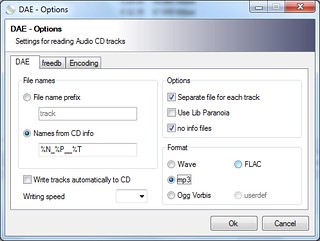
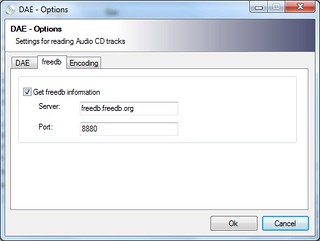
To rip a music CD, click on the DAE tab and click the Options button. Check to make sure the options are okay.


cdrtfe_dae_options_1
cdrtfe_dae_options_2

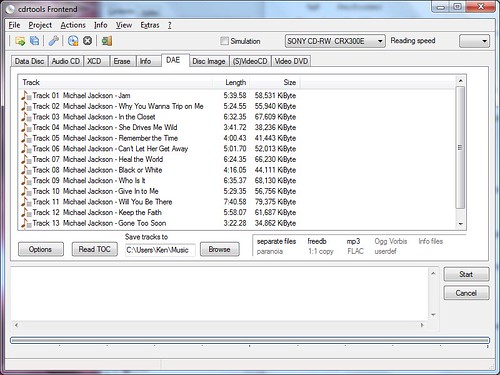
Back to the main window, click Read TOC to update the track list, check the Save tracks to folder, and click Start to begin ripping.


cdrtfe_dae

Sunday, April 25, 2010

Setting Up Codecs For Windows 7

Although Windows 7 provides wider support for multimedia files, including H.264, XviD, DIVX and AAC, Windows Media Player 12 has some bugs, such as jittery DVD sound. For satisfying multimedia experience in Windows 7, one needs to take some steps to set up additional codecs. Though ffdshow is a comprehensive codec package, I am going to use alternative codecs other than ffdshow.


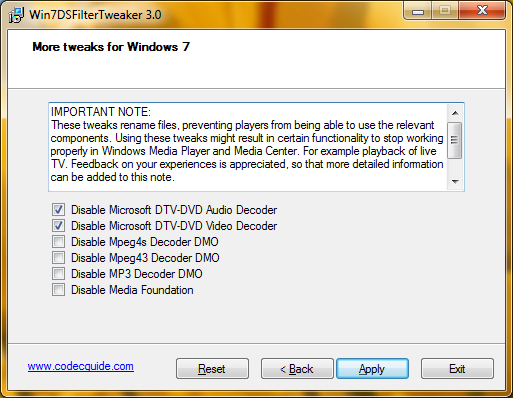
  1. Go to C:\Windows\System32 and rename msmpeg2adec.dll and msmpeg2vdec.dll. Alternatively, run Win7DSFilterTweaker and check both Disable Microsoft DTV-DVD Audio decoder and Disable Microsoft DTV-DVD Video decoder.

    Win7DSFilterTweaker 3.0


  2. Install DirectShow FilterPack (DSFP.zip) which only contains DirectShow source filters and splitters, but no codecs. Unpack the package (DSFP-3.32.exe) into C:\Program Files. Start the Command Prompt (cmd.exe) as administrator and run the batch file DSFP_inst.bat.

    cd "C:\Program Files\DirectShow FilterPack"
    DSFP_inst.bat


  3. Install XviD codec.

  4. Install AC3filter which allows Media Player to play AC3 and DTS sound.

  5. Install DirectShow filters for Ogg Vorbis, Speex, Theora and FLAC from xiph.org.

  6. Obtain CLVsd.ax from the Web and run the following command in an elevated Command Prompt.

    regsvr32 CLVsd.ax

    CLVsd.ax can be obtained this way:


    • Download PowerDVD from filehippo.
    • Right-click the installer (CyberLink.1705(Trial)_DVD100510-04.exe) and open it with 7-zip.
    • Right-click data1.cab and choose Open Inside.
    • Extract the file _64A6CC87C2FD46EDBDBCC13164131D6A (1,086,832 bytes) to C:\Windows\System32 folder.
    • Rename _64A6CC87C2FD46EDBDBCC13164131D6A as CLVsd.ax.
    • Run "regsvr32 CLVsd.ax" as administrator.


  7. Open the registry editor (regedit) and navigate to HKLM\SOFTWARE\Microsoft\Windows\CurrentVersion\Media Center\Decoder and find the entry PreferredMPEG2VideoDecoderCLSID. Double-click the entry and enter {516F1EFA-42F4-436E-801C-B752EB9343EB} (UUID for Cyberlink decoder). You can verify the CLSID with Radlight Filter Manager (DSFM.exe) that was installed by DirectShow FilterPack above.

  8. Download the DirectVobSub filter, also known as VSfilter. Copy VSFilter.dll to C:\Windows\System32 and run the following command:

    regsvr32 VSFilter.dll


Saturday, April 24, 2010

MinGW: To Compile Vorbis Tools

Vorbis tools include oggenc and vorbiscomment that can be used to produce Ogg-Vorbis music files. Ogg Vorbis provides people with free, open-source audio format and encoding algorithm. Because the MP3 algorithm is patented and creating MP3 exposes people to legal risks, use of the Ogg Vorbis format is a reasonable choice for legally conscious people. Besides its openness and patent-free characteristics, Ogg Vorbis offers good compression and sound quality, comparable to MP3 and AAC. Therefore, everyone is recommended to create, use and spread Ogg Vorbis music files, instead of MP3 and AAC.


To learn how to prepare a MinGW environment, read this post. Then, download the source for libogg, libvorbis and vorbis-tools from xiph.org.


To build Vorbis tools, libogg and libvorbis should be compiled first. Start the MinGW rxvt console from the Start menu. Unpack the libogg source and compile it as follows:


tar xzvf libogg-1.2.0.tar.gz
cd libogg-1.2.0/
./configure --prefix=/mingw
make
make install


libvorbis can be compiled likewise:


tar xzvf libvorbis-1.3.1.tar.gz
cd libvorbis-1.3.1/
./configure --prefix=/mingw
make
make install


Then, build vorbis-tools as follows:


tar xzvf vorbis-tools-1.4.0.tar.gz
cd vorbis-tools-1.4.0/
./configure --prefix=/mingw --disable-nls --enable-threads=win32
make
make install


When done, the following files are created in /mingw/bin:


libogg-0.dll
libvorbis-0.dll
libvorbisenc-2.dll
libvorbisfile-3.dll
oggdec.exe
oggenc.exe
ogginfo.exe
vorbiscomment.exe


Copy these files whereever you want. To create an Ogg Vorbis file from a .WAV file, use a command like this:


oggenc -q5 audio.wav


Related Posts


Friday, April 9, 2010

MinGW: Building TwoLAME

TwoLAME is MPEG-2 audio encoder. First, compile libsndfile which is used is read sound files in various formats.


tar xzvf libsndfile-1.0.21.tar.gz
cd libsndfile-1.0.21/
./configure --prefix=/mingw --disable-shared --enable-static
make
make install

Then, build twolame.


tar xzvf twolame-0.3.12.tar.gz
cd twolame-0.3.12/
./configure --prefix=/mingw CPPFLAGS='-DLIBTWOLAME_STATIC'
make
make install

When linking a program with a static TwoLAME library, define LIBTWOLAME_STATIC with CPPFLAGS.


CPPFLAGS=' -DLIBTWOLAME_STATIC' ./configure --enable-static --enable-twolame

Friday, April 2, 2010

MP4Box Usage

To package a MPEG-4 Video


Wrap up the raw H.264 video along with chapters inside a MPEG-4 container.


MP4Box -add video.264 -chap chapters.txt -fps 23.976 film.m4v


To Find Info on the First Track inside a .M4V file


MP4Box -info 1 movie.m4v


To Extract H.264 Video from a .M4V file


MP4Box -raw 1 movie.m4v


To Extract AAC audio from M4A file


Use MP4Box to extract AAC audio from a .M4A file like this:


MP4Box -raw 1 music.m4a

Tuesday, March 23, 2010

Using Icedax and LAME to Rip Music CD

This short guide will help you rip a CD with a few command-line tools. Download the following files and put them in a folder, such as C:\WINDOWS.


Insert your music CD into the CD-ROM drive and open a command prompt (cmd.exe). First, run the following command to find your CD-ROM drive.


icedax -scanbus

The following command will display the contents of your CD:


icedax dev='D:' cddb=1 -J

The following command will save the second track as track2.wav:


icedax dev='D:' cddb=1 track=2 track2.wav

The following command will save each track as track##.wav:


for %i in (1 2 3 4 5 6 7 8 9 10) do icedax dev='D:' cddb=1 track=%i track%i.wav

For brief help on icedax command, type:


icedax -h


Using LAME to encode MP3 from .WAV files


LAME is a free MP3 encoder. I've written how to compile LAME in a previous post. The numerous options of LAME can be confusing to new users. After reading the output of lame --help, lame --preset help and lame --longhelp, I decided to go with one of the following presets and the -h option:


  • fm/radio/tape => 112kbps
  • hifi => 160kbps
  • cd => 192kbps
  • studio => 256kbps

The following is options related to ID3 tagging:


  ID3 tag options:
--tt <title> audio/song title (max 30 chars for version 1 tag)
--ta <artist> audio/song artist (max 30 chars for version 1 tag)
--tl <album> audio/song album (max 30 chars for version 1 tag)
--ty <year> audio/song year of issue (1 to 9999)
--tc <comment> user-defined text (max 30 chars for v1 tag, 28 for v1.1)
--tn <track[/total]> audio/song track number and (optionally) the total
number of tracks on the original recording. (track
and total each 1 to 255. just the track number
creates v1.1 tag, providing a total forces v2.0).
--tg <genre> audio/song genre (name or number in list)

Here's an example LAME command using my favorite preset hifi:


LAME --preset hifi -h --tt "House Party Remix" track3.wav PartyRemix.mp3

This converts track3.wav to PartyRemix.mp3 using ABR 160kbps hifi encoding.

Monday, March 22, 2010

Free Command-Line Audio Encoders (for Windows)

Here you can download free, open-source audio encoders for MP3, OGG and AAC music formats. I compiled LAME and Ogg Vorbis tools with MinGW whereas FAAC was compiled by someone (faac-1.28.7z).


Install MPlayer, Mencoder, MP4Box and Mkvmerge


Download my package of Windows executables, including mencoder and mp4box here.


I built it using MinGW. The package contains the following programs.


  • faac.exe
  • faad.exe
  • lame.exe
  • mencoder.exe
  • MP4Box.exe
  • mpcenc.exe
  • mplayer.exe
  • normalize.exe
  • oggdec.exe
  • oggenc.exe
  • ogginfo.exe
  • speexdec.exe
  • speexenc.exe
  • twolame.exe
  • vorbiscomment.exe
  • x264.exe

It is recommended that you unpack the package into C:\Program Files. If MPlayer and Mencoder were installed in C:\Program Files\MPlayer, start Command Prompt and set PATH to include the MPlayer folder:


PATH "C:\Program Files\MPlayer\bin";%PATH%

Mkvmerge is part of Mkvtoolnix that can be obtained from http://www.bunkus.org/videotools/mkvtoolnix/.


Related Links


Monday, February 1, 2010

MinGW: To Compile LAME for Windows

LAME is a high-quality open-source MP3 encoder. Even though LAME is open-source, LAME is not freely distributed by some major Linux distributions, including Debian and Ubuntu. That's because there have been uncertain legal issues surrounding the MP3 algorithm. However, you can still download the LAME source and compile LAME using the free MinGW compiler. Following is an easy guide to compiling LAME for Windows.


The configure script of LAME makes use of nasm if found. To produce an optimal build of LAME, download yasm and save it as /mingw/bin/nasm.exe.


Launch MSYS (rxvt) and type the following command to unpack the LAME tarball.


tar xzvf lame-398-4.tar.gz

Go to the new folder lame-3.98.4 and configure LAME.


cd lame-3.98.4

./configure --prefix=/mingw --disable-shared --enable-expopt=full

Start compilation.


make

“make install” will copy the following files into /mingw tree.


bin/lame.exe
bin/libmp3lame-0.dll
include/lame/
lib/libmp3lame.a
lib/libmp3lame.dll.a
lib/libmp3lame.la

What you definitely want is libmp3lame-0.dll and lame.exe. Copy them to a folder, for example, C:\Windows\System32 or C:\Windows.


To Make LAME_ENC.DLL


Even though the normal MinGW process creates a dynamic library named libmp3lame-0.dll, many Windows applications require a variant of LAME library called lame_enc.dll. Rather than hacking Makefiles, we can use a tool called a2dll from mingw-utils. mingw-utils is a package of tiny handy programs useful for MinGW users. Download mingw-utils-0.3.tar.gz and extract a2dll with tar or 7-zip.


After compiling LAME as shown above, open MSYS rxvt again and go to the folder that contains libmp3lame.a.


cd lame-3.98.4/libmp3lame/.libs

Then, run a2dll like this:


a2dll libmp3lame.a -o lame_enc.dll

You may append the -s option to get a leaner file lame_enc.dll. I tested lame_enc.dll I got this way with Audacity, and audacity was able to recognize lame_enc.dll and export to MP3 files. Yet, I need to do more testing with other programs, such as WinAMP, etc.


Related Posts


Saturday, September 19, 2009

Linux: Building RipOff 0.8.3

I am building RipOff which is a GTK+ application that rips Audio CD's. RipOff depends on GTK+ 2.4 and up, libcdio, libcddb, libogg, libvorbis, Lame and FLAC. Let's first build RipOff dependencies:


  1. Install the following packages:


    • libcddb2-dev
    • libflac-dev
    • libgtk2.0-dev
    • libogg-dev
    • libvorbis-dev
    • libxml2-dev

  2. RipOff 0.8.3 requires glib 2.8 and up. If the version of glib is too old, you have to build glib yourself.

    ./configure --prefix=/usr --disable-shared --disable-debug
    make
    make install

  3. Download the libcdio source and compile it:

    tar xzvf libcdio-0.82.tar.gz
    cd libcdio-0.82
    ./configure --prefix=/usr --disable-shared
    make
    make install

  4. If libcddb2-dev package is not available, download the libcddb source and compile libcddb:
    tar xzvf Downloads/libcddb-1.3.2.tar.gz
    cd libcddb-1.3.2/
    ./configure --prefix=/usr --disable-shared
    make
    make install

  5. Compile LAME as follows:


    ./configure --prefix=/usr --disable-shared
    make
    make install

  6. Build RipOff as follows:


    ./configure --prefix=/usr
    make
    make install

    The following files are installed by RipOff:


    /usr/bin/ripoff
    /usr/include/ripoff/RipOff.h
    /usr/include/ripoff/RipOffConfigFile.h
    /usr/include/ripoff/RipOffPluginRawInterface.h
    /usr/include/ripoff/RipOffTrack.h
    /usr/include/ripoff/config.h
    /usr/lib/libripoff.a
    /usr/lib/libripoff.la
    /usr/lib/libripoff.so
    /usr/lib/libripoff.so.0
    /usr/lib/libripoff.so.0.0.0
    /usr/lib/ripoff/plugins/libflac.so
    /usr/lib/ripoff/plugins/liblame.so
    /usr/lib/ripoff/plugins/libvorbis.so
    /usr/lib/ripoff/plugins/libwav.so
    /usr/share/applications/ripoff.desktop
    /usr/share/pixmaps/ripoff.xpm

Sunday, August 16, 2009

Mplayer & Mencoder: Extracting AC3 audio from DVD

Extracting AC3 audio from a DVD is a smart thing to do when ripping DVD's. First of all, it separates the audio part of the task and lets the user focus on the video encoding part. Secondly, it helps the user to make decision about the bitrate of the video depending on the size of output files. Here's my mencoder command to extract AC3 data from a DVD.


mencoder.exe dvd://1 -dvd-device D: -aid 128 -ss 4 -o war.ac3 -of rawaudio -oac copy -ovc frameno

Alternatively, I can use MPlayer to achieve the same thing.


mplayer movie.vob -aid 128 -dumpaudio -dumpfile audio-en-51.ac3

mplayer movie.vob -aid 129 -dumpaudio -dumpfile audio-fr-51.ac3

Oddly, the output file war.ac3 plays fine with MPlayer, but can't be played with VLC player. Is it because VLC player is inferior to MPlayer?


When Mencoder finished ripping DVD audio, it displayed the following:


Recommended video bitrate for 650MB CD: 434

Recommended video bitrate for 700MB CD: 502

Recommended video bitrate for 800MB CD: 637

Recommended video bitrate for 2 x 650MB CD: 1316

Recommended video bitrate for 2 x 700MB CD: 1451

Recommended video bitrate for 2 x 800MB CD: 1723


Video stream: 0.767 kbit/s (95 B/s) size: 593132 bytes 6183.043 secs 148295 frames


Audio stream: 448.000 kbit/s (55999 B/s) size: 345966435 bytes 6177.972 secs

This information is helpful in deciding the bitrate of the video.


Extracting Video from DVD


To extract only video from a DVD, I used the following command:


mencoder dvd://1 -dvd-device D: -o war.264 -of rawvideo -vf filmdint -ofps 24000/1001 -nosound -ovc x264 -x264encopts bitrate=720:vbv_maxrate=1000:vbv_bufsize=2000:direct_pred=auto:8x8dct:me=umh:trellis=1:pass=1:turbo=2 -ss 4

Saturday, August 8, 2009

Mencoder: Extract Sound from a DVD track and Save it as .WAV file

A friend of mine asked me to make an audio CD from the sound extracted from a DVD track. For this job, I used mencoder which I've compiled for both Windows and Linux. After several attempts, I found the right mencoder command to extract sound from a DVD track to a raw headerless uncompressed PCM format. The track I wanted was the second track on the DVD. Here's my mencoder command:


mencoder.exe dvd://2 -o track2.raw -of rawaudio -oac pcm -ovc frameno

This will produce a file which only holds uncompressed PCM data. You can't yet play it with a media player. It's got to be converted to the .WAV format. I opened it in audacity and chose File, Import, Raw Data... from the menu. In the Import Data... dialog, I chose the following settings:


  • Encoding: Signed 16-bit PCM
  • Byte-order: Little-endian
  • Channels: 2 Channels (Stereo)
  • Start offset: 0 bytes
  • Amount to import: 100 %
  • Sample Rate: 44100 Hz

Audacity opened it with no problem. Then, I saved the file in .WAV fomat by selecting File, Export... from the menu.


The resulting .WAV file can be burnt to a CD using most CD burners including InfraRecoder and CDBurnerXP.

Sunday, December 21, 2008

Applying an Fade-Out Effect to MP3 Using Audacity

When you download MP3's from the Internet, you occasionally get music files that have abrupt ending. These files occur because of incomplete downloads or CD's that have a track fading into another. In this case, you can use Audacity to fix the problematic music file. The following steps show how to apply an fade-out effect to such MP3 files that have abrupt ending.

Open the File menu and select Open... to open the audio file you want to work on. Audacity will display a popup window showing the progress of converting an MP3 to a wave file.

Once the conversion is done, click Zoom In multiple times until the units are in seconds. Select about 3 seconds at the end of the file.

Open the Effect menu and select Fade Out. Test the modified sound by clicking the Play button.

Save it back to an MP3 file. Open the File menu and select Export as MP3.

Saturday, December 20, 2008

Audacity Installation

Audacity is a multi-platform audio editor. You can use Audacity to edit MP3's and add sound effects such as fade-out to your music files. To install Audacity on Windows, download Audacity installer. You also need lame_enc.dll to edit and save MP3 files. If you have installed Winamp, lame_enc.dll is located in Winamp Plugins (C:\Program Files\Winamp\Plugins) folder.

Friday, December 19, 2008

iAUDIO U5: My Next MP3 Player to Buy

MP3 players are getting ubiquitous these days. One of the best MP3 player brands is COWON. Its products simply reflect the best in design and craftsmanship. The sound quality and sound effects featured in its products are far superior to other competitor's. I already own iAUDIO U3 2GB and know how good it is by experience.

I am in search of the next MP3 player to buy. Certainly, it's not going to be an iPod. iPod can't play MP3's, AFAIK. I chose to buy a product by COWON because COWON's products are full of functions not found in others. Of COWON's portable media player, I found iAUDIO U5 to be most attractive.


About This Blog

KBlog logo This blog is about current events and issues concerning general population. Thanks for visiting the blog and posting your comments.

© Contents by KBlog

© Blogger template by Emporium Digital 2008

Followers

Total Pageviews

icon
Powered By Blogger